Beat Studio 2.1: Lifetime Licence and New Audio Settings
Beat Studio 2.1 switches to a one-time lifetime licence on Gumroad, merges Free and Pro into one app, and adds audio device, buffer and Windows output settings.
First, a big thank you to everyone who has supported Beat Studio on Patreon. You made it possible to keep building the app, and your feedback has shaped a lot of what it is today.
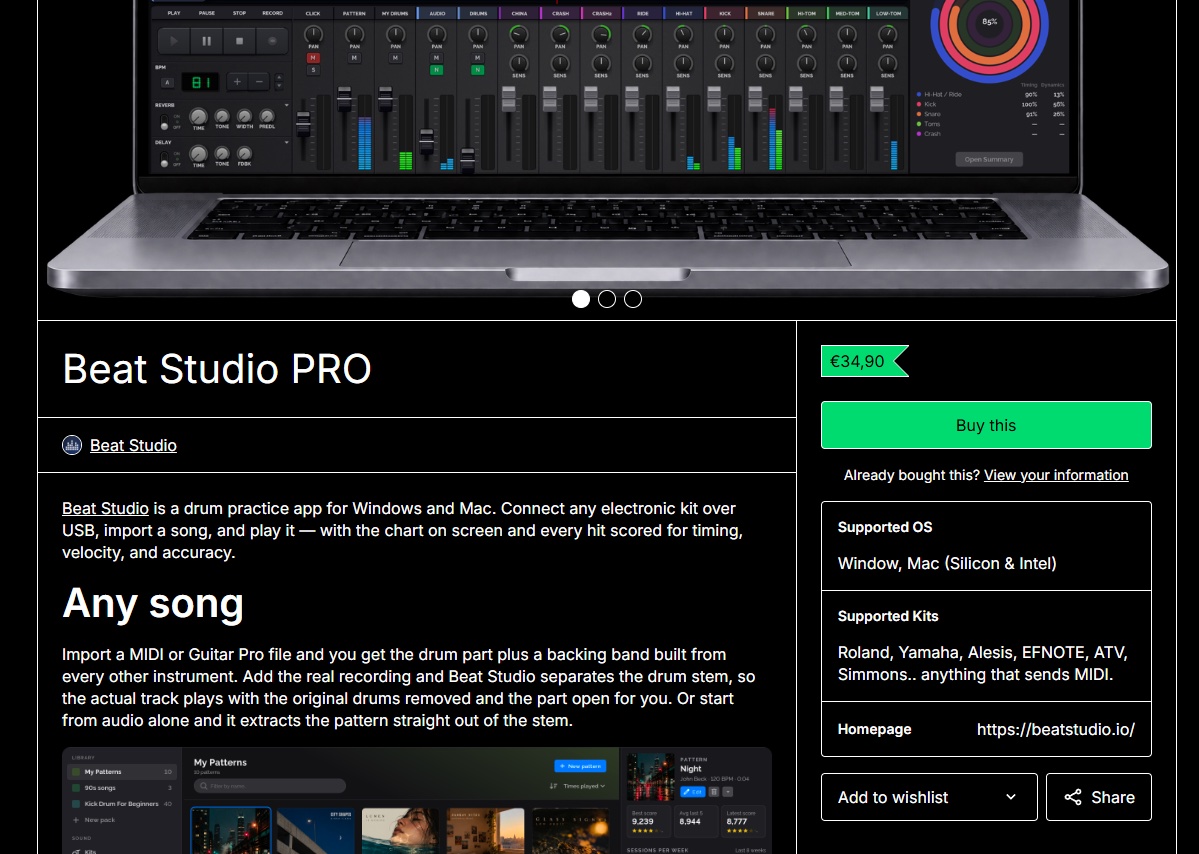
Today Beat Studio moves to a traditional licence model. You can now buy a lifetime licence with a single purchase on Gumroad: no subscription, and it’s yours to keep. I’ll keep the Patreon page running too, at least for now, but memberships and single versions are no longer sold through Patreon.
As promised in the 2.0 post, all current PRO members get a free lifetime licence. I’ll send each active PRO member a personal code via DM on Patreon, which you can use to get your licence on Gumroad at no cost.
This release has only a few new features, because a lot of the work went into the licensing changes behind the scenes.
New licence model
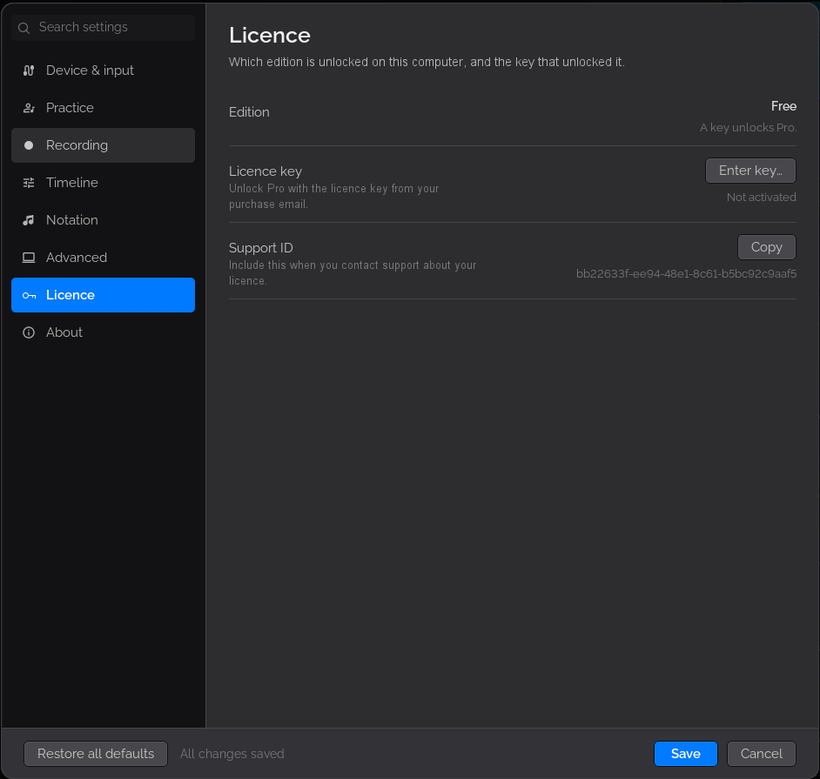
There are no longer separate FREE and PRO packages — there’s just one version. It runs in FREE mode until you enter a licence key, and then it becomes PRO.
Once you’ve bought a licence, enter your key in Settings → Licence and restart Beat Studio. It will then run in PRO mode. Your key is saved in your user data folder, so when a new version comes out you can update the same way as before: just replace the app folder with the new one. You won’t need to enter your key again.
The licence is checked each time the app starts, but Beat Studio can also be used completely offline for a few weeks at a time. After that, it needs an internet connection to verify the licence again. All of this happens automatically, so you don’t have to do anything — just launch the app and start playing.
New audio settings
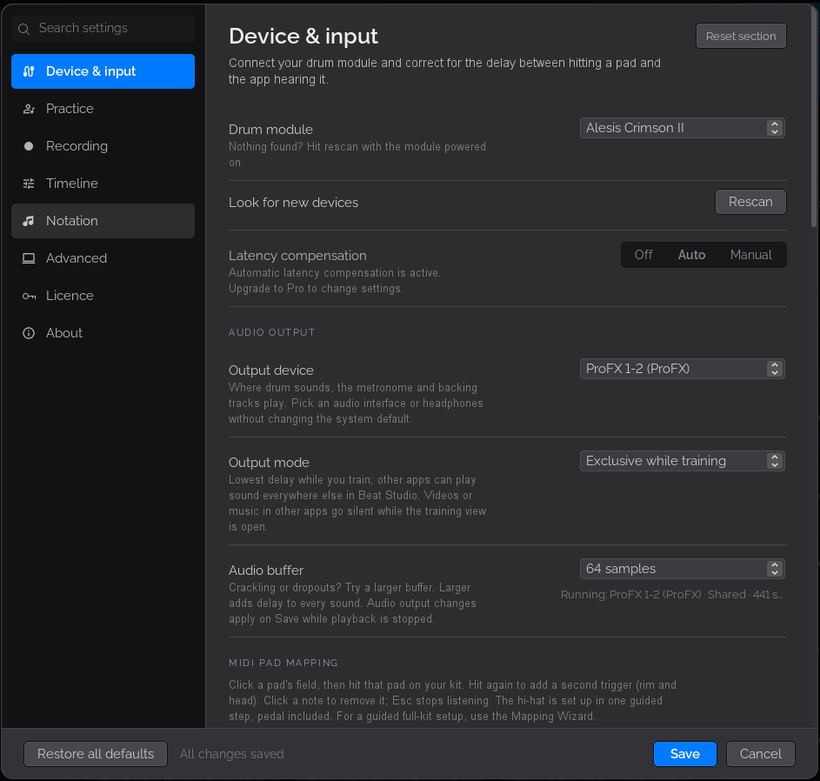
- Audio device selection. Choose which output device Beat Studio uses.
- Audio buffer size. A smaller buffer gives lower latency; a larger buffer helps if you hear crackles or dropouts.
- Output mode (Windows):
- Auto (recommended) uses Exclusive mode when possible, and switches to Shared if Windows doesn’t allow it.
- Exclusive gives Beat Studio full control of the audio device for the lowest latency. Other apps can’t play sound on that device while Beat Studio is open.
- Shared lets other apps play sound alongside Beat Studio, but latency is noticeably higher than in Exclusive mode.
- Exclusive while training uses Exclusive mode while the training view is open, and Shared mode everywhere else. You can play YouTube videos or other audio while you browse the library, and Beat Studio switches to the lowest latency when you start training.
Windows display scaling
Better support for scaled displays on Windows, so graphics no longer look blurry.
What’s next?
My first step is to fix any issues that come up. If you find a bug or anything else that seems off, email me at contact@beatstudio.io. After that, I have some smaller and bigger additions in mind — more about those later.
The download is in a separate post on Patreon, and the lifetime licence is on Gumroad.